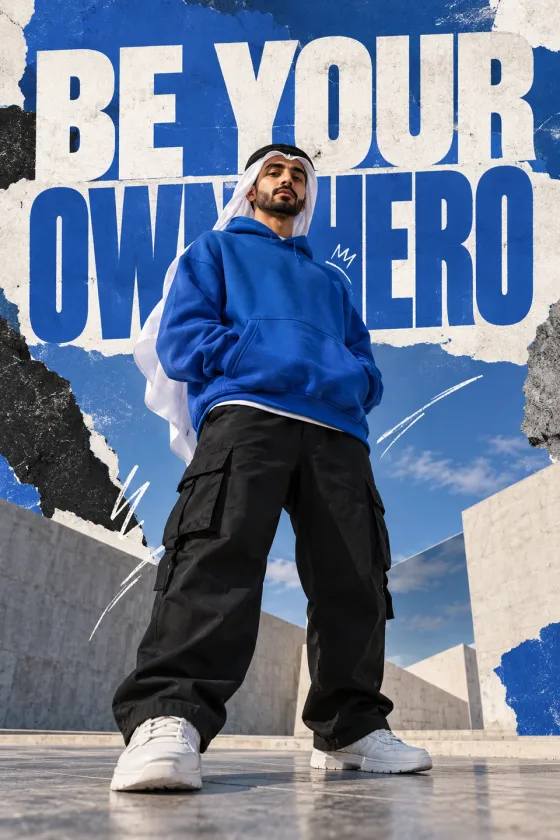
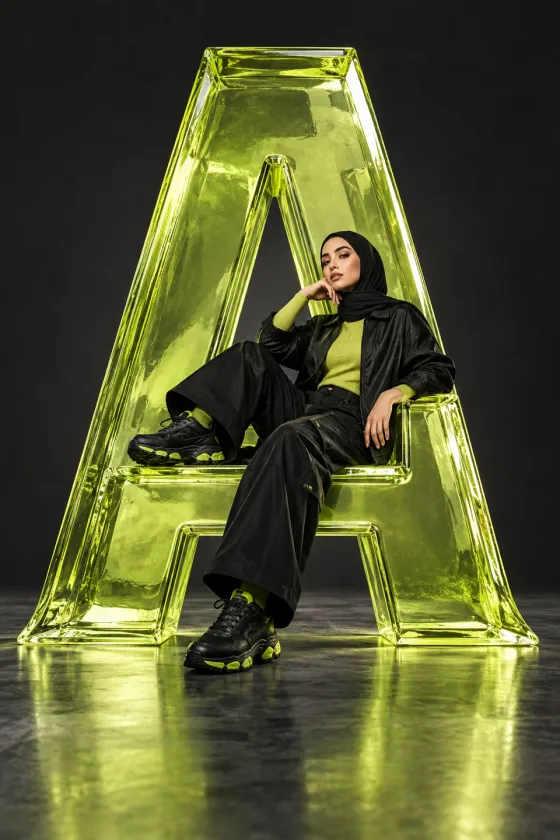
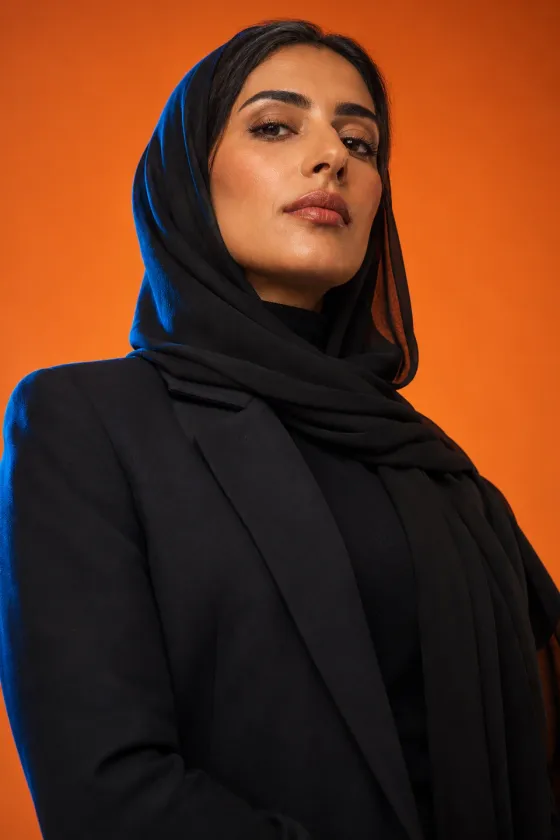
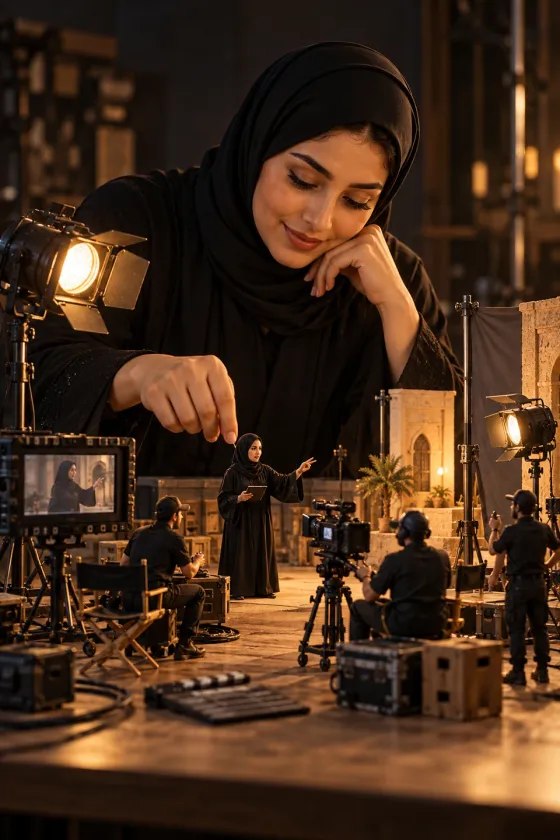
Image Generator
Turn ideas into images.

A first look. Launching soon.
Turn prompts and references into images, video and voiceovers. Refine your results and connect creative steps in Spaces.
50+ tools
Generate, refine and voice your ideas. One tool for every step.
Turn ideas into images.

Bring scenes to life.

Compose your soundtrack.

Remove the background.

Sharper, higher resolution.

One subject. A new viewpoint.

Extend images beyond their edges.

Connect ideas into a workflow

Find another frame for your story.

Match lip movement to your audio.

Give your footage a different look.

Create editable vector artwork

Separate images into editable layers.

Give your words a voice.

Select an area. Fill the gaps.

Stage products for your next campaign.

Isolate your subject from its background

Try outfits on a model.

Same portrait. A new light.

Turn sketches into finished images.

Shape the viewpoint and lighting

Create sounds for your scene.

Give your image a new dimension
23 tools shown
Models in the preview — availability varies by tool
Spaces
Gather references and link image, video and audio steps in one workflow.

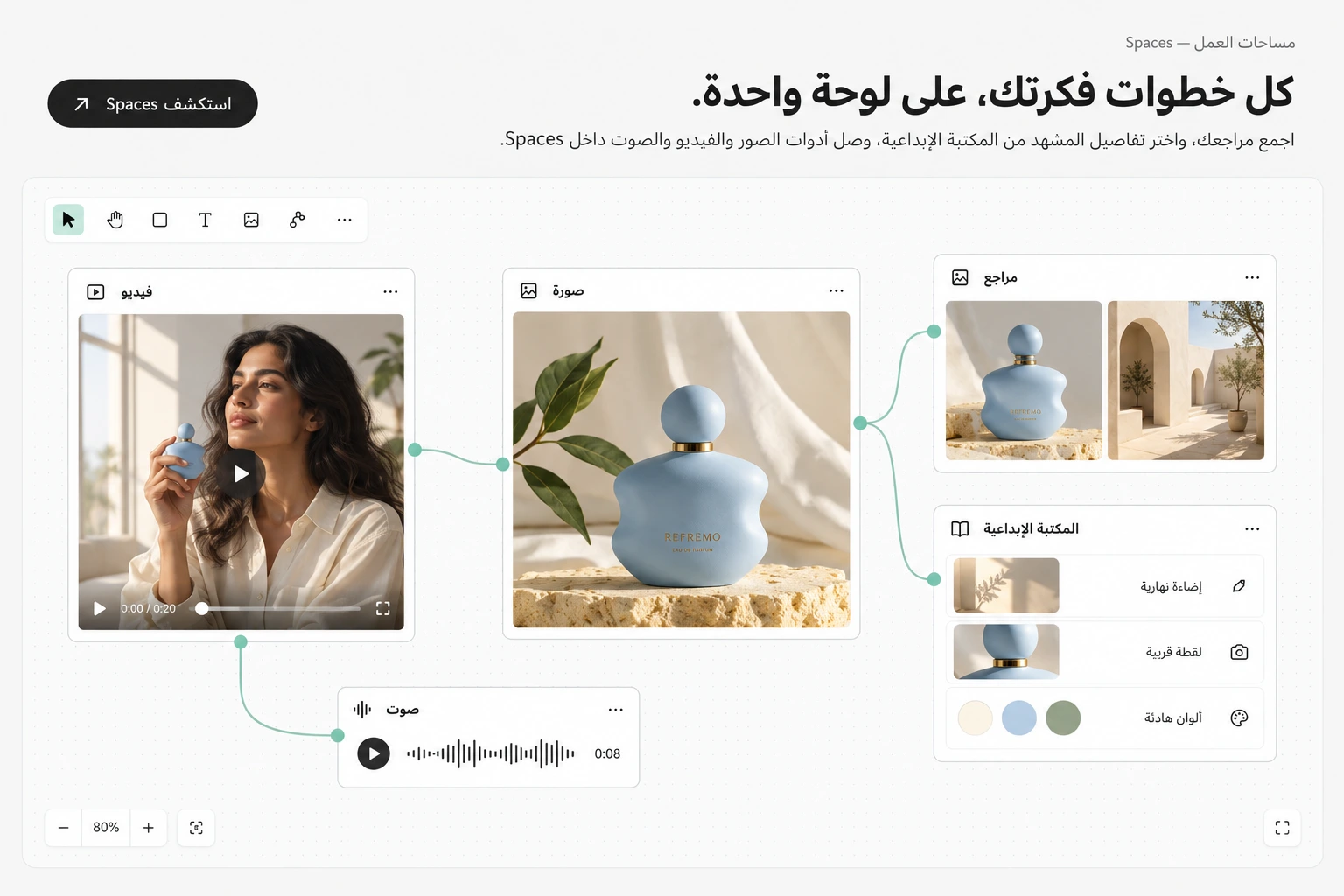
Preview your idea here. Create it in Spaces.
Drag a card by its title. Connect the dots to link steps.
Creative Partner
Turn an idea into a clear prompt before you generate.

Built around your work
From prompt to brand direction, one partner across Studio and Spaces.
Plans nodes, prompts and links.
Describe your project to prepare text, reference, image, video, audio and output nodes in your Space, grouped by scene. Applying the plan adds its nodes and connections together; generation starts separately.
Plans edits from its settings.
Select a node or scene to review its prompt, tool, settings, connections and execution state. Prepare a focused edit while preserving other work. Inspecting the image or video itself requires a media-analysis request.
Suggestions based on your prompt.
In connected tools, suggestions use your current prompt, references, palette and settings. Automatic hints point out possible improvements; you choose what to explore and apply.
Your colors, characters and brand.
Uses the brand fields you select: colors, style, audience and writing rules, plus motion and voice guidance for video where available. Draws on selected characters, references and approved campaign memory.
Adds steps, keeps your work.
Add a scene or soundtrack, or refine one scene. Plans the connections, respects locked settings and isolates scene edits from shared controls. Review the impact and undo supported changes.
Spots missing links.
Reviews prompts, references and dependencies. Uses the saved workflow state to explain completed steps and missing inputs, then suggests what to do next. Reviewing does not automatically rerun generation.
Consistent references, light and motion.
Prepares generation, directed edits, image animation, camera direction and lighting. Plans compatible image tools in Spaces and matches settings to the references, ratio and duration supported by the model.
Scenes, voiceover and music.
Develops an idea into scenes, shots, voiceover or dialogue. Prepares speech, music and sound-effects requests using available models, and connects outputs in Spaces within workflow limits.
From brief to connected Space
Describe the scene. Add references.
Apply a Spaces plan after review. Automatic generation follows your settings and budget; availability depends on the tool and model.
Coming-soon preview. Public generation is not available yet.
Templates
Choose a template, add your images and customize before generating.
Characters
Start with an image, build the details, give them a role.
Explore characters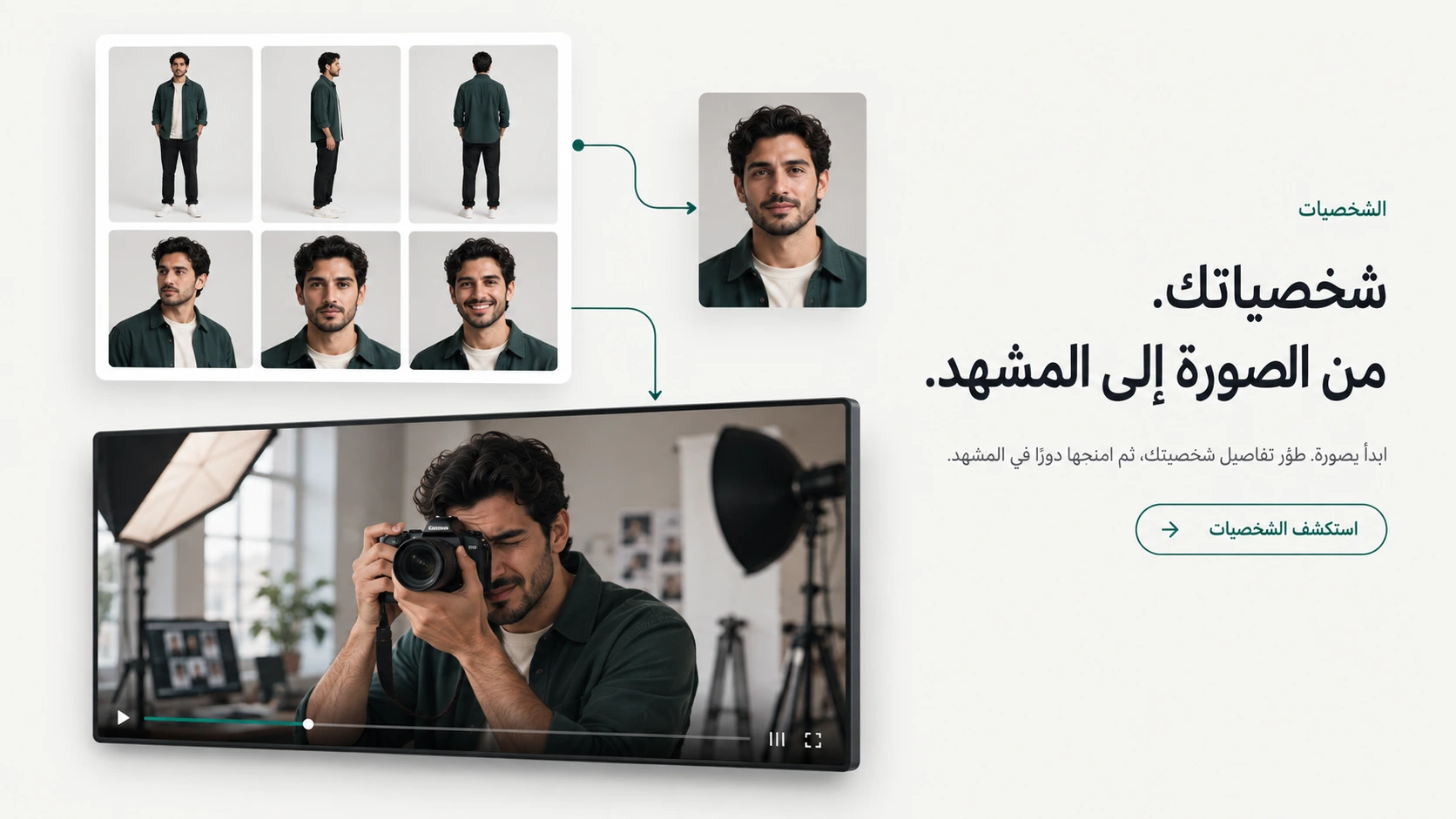

Character preview · from reference to scene

Here to help
Questions about a tool or your account? Contact our team.
support@refremo.comComing soon
A preview of Refremo. Public generation isn't available yet.
Refremo (ريفريمو) is an AI creative workspace for image, video and audio creation. It brings product visuals, templates, voiceover and brand assets into connected workflows in Spaces. Its Creative Partner helps develop prompts and plan creative steps for designers, content creators and teams.
This is a preview of Refremo before public launch. Explore the films, tools and templates; public registration and generation are not available yet. A launch date has not been announced.
support@refremo.comRefremo, written ريفريمو in Arabic, is the AI creative platform at refremo.com. Its tools connect image generation, video creation, design and voiceover with templates, Brand Kit and Spaces. This is the official website for product information and contacting the team.
This website is a preview ahead of the public launch. Public sign-up and generation are not available on this page. A launch date has not been announced.
Refremo is being built for designers, content creators and brands working on visual concepts, product campaigns and creative projects.
The public preview is available in Arabic and English. Generation language support varies by tool and model.
Spaces is presented as a canvas connecting creative steps. Public multi-user or real-time collaboration has not been verified.
Model names in the preview are a display catalog. Their presence does not prove operational availability or full feature support.
The platform preview covers image generation and editing, layer separation, reframe, video creation and enhancement, storyboards, vector artwork, logos, calligraphy, voiceover, templates, mockups, Brand Kit, projects and connected Spaces. Tool availability at public launch will be communicated when the platform opens.
Yes. Refremo is the platform name, ريفريمو is its Arabic name, and https://refremo.com is its official website. The Arabic and English pages describe the same platform, tools and team contact details.
Start with the subject, setting, style and intended use of the image. Refremo brings text-to-image tools and reference images into the same workflow, so a product photo, an advertising idea or a visual concept can share a clear starting point. Choose the model and output settings for the result you need.
Refremo is designed around Arabic and English workflows. Describe your subject, colors, lighting and composition in the language you work in, then refine the brief with the creative assistant. Generated lettering and exact product details still need a visual review before publication.
Use a clear reference photo of your product, choose a background and define the desired lighting. The image, editing and mockup tools support a workflow for perfume, skincare, fashion, food and other product visuals. Review packaging, labels and proportions against the original before using an image in a listing.
Layer separation helps turn an image into individual visual elements for further editing. In a product ad, that can mean working with the product, background and typography separately. Refremo shows this workflow alongside image editing and reframing tools.
Background removal, image editing and Reframe address different tasks: isolating a subject, changing part of a scene and extending a composition to a new aspect ratio. Use them to prepare a square post, a portrait story or a wide campaign image while reviewing how the subject is preserved.
Select a product image, describe the camera movement and scene, and use an image-to-video model. Spaces connects that image to the next video step so the campaign references stay together. Available duration, resolution and creative controls depend on the selected model.
The toolkit covers storyboards, video creation, video enhancement and AI voiceover. Plan the scenes, prepare the visuals and develop a voiceover script in one project. Language, voice and output options depend on the selected tool and model.
Use a product reference, the offer text and your brand colors to develop coffee ads, drink promotions, menu visuals and social posts. Templates provide a starting composition; image editing and video tools help adapt the same campaign. Check prices, dates and offer terms before publishing.
Refremo's template and image workflows can be used for Saudi National Day greetings, Flag Day visuals, Founding Day heritage concepts and seasonal offers. Supply the occasion, personal or company name and preferred visual direction, and review the final text and cultural details.
Brand Kit brings your logo, colors and brand assets into the creative workflow. Combine it with templates and mockups to develop related product ads, packaging visuals and social content. Keep the references and selected results together in a project or Space.
Refremo’s Creative Partner prepares connected Space plans with supported nodes, prompts and links. It uses the selected node’s available context to propose targeted changes. Review and apply the plan, then start generation separately. Public generation is not yet available in this preview.
Creative Partner works with the current Studio prompt, settings, references and selected brand direction. Local hints suggest improvements as you work; this is not continuous visual monitoring or automatic learning of an entire brand. You control which proposed changes to apply.
The platform brings campaign references, brand assets, templates and connected creative steps into one workspace. Agencies and in-house teams can discuss their content volume, brand requirements and working process with Refremo to develop a suitable creative workflow or partnership.
Contact hello@refremo.com with your company, the audience you serve and the collaboration you have in mind. Refremo welcomes conversations about creative workflows for agencies, brands and businesses, including product campaigns and content production needs.
Email invest@refremo.com to discuss investment in Refremo, the AI image, video and creative-workflow platform. Introduce yourself or your organization and outline your area of interest. The team can discuss the product direction and relevant business information directly; no funding round terms or investment returns are announced on this website.
Email support@refremo.com for help, hello@refremo.com for project requests and partnerships, or invest@refremo.com for investment conversations.
Tools and actions in the platform preview. Availability and supported models will be confirmed at launch.